Create and assign a task in NIV Work
Give a task a clear outcome, an accountable owner and a visible place on the work board.
- Purpose
- Create one traceable task that a teammate can understand and start without asking what is expected.
- Who uses this
- Team leads and team members who can create work items.
- Before you start
- Sign in to NIV. Select your company and an existing workspace you can edit. For practice, use the demo workspace and fictional information.
Open the correct workspace
Open NIV Work. Check the company and workspace selectors before creating a task. In this example, use NIV Learning Demo and Operations practice.
The selected workspace's work items are displayed.
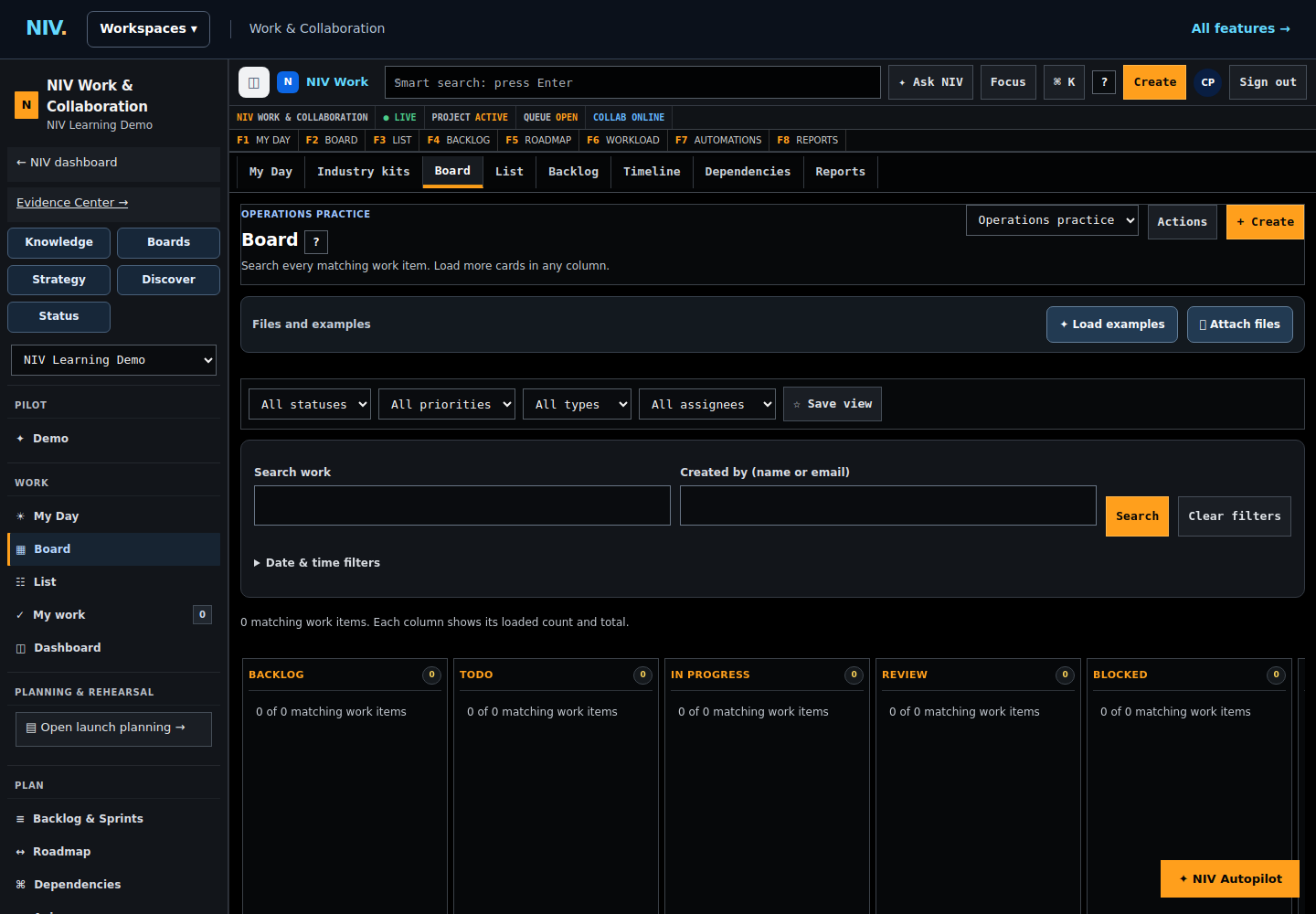
Actual NIV screen with fictional data. Select the image to view full size.
If something is wrong: If the workspace is missing, ask its administrator for access. Do not create the task in another company's workspace.
Start a new work item
Select Create to open the New work item form.
The form shows Summary, Type, Priority, Assignee, Status and Description.
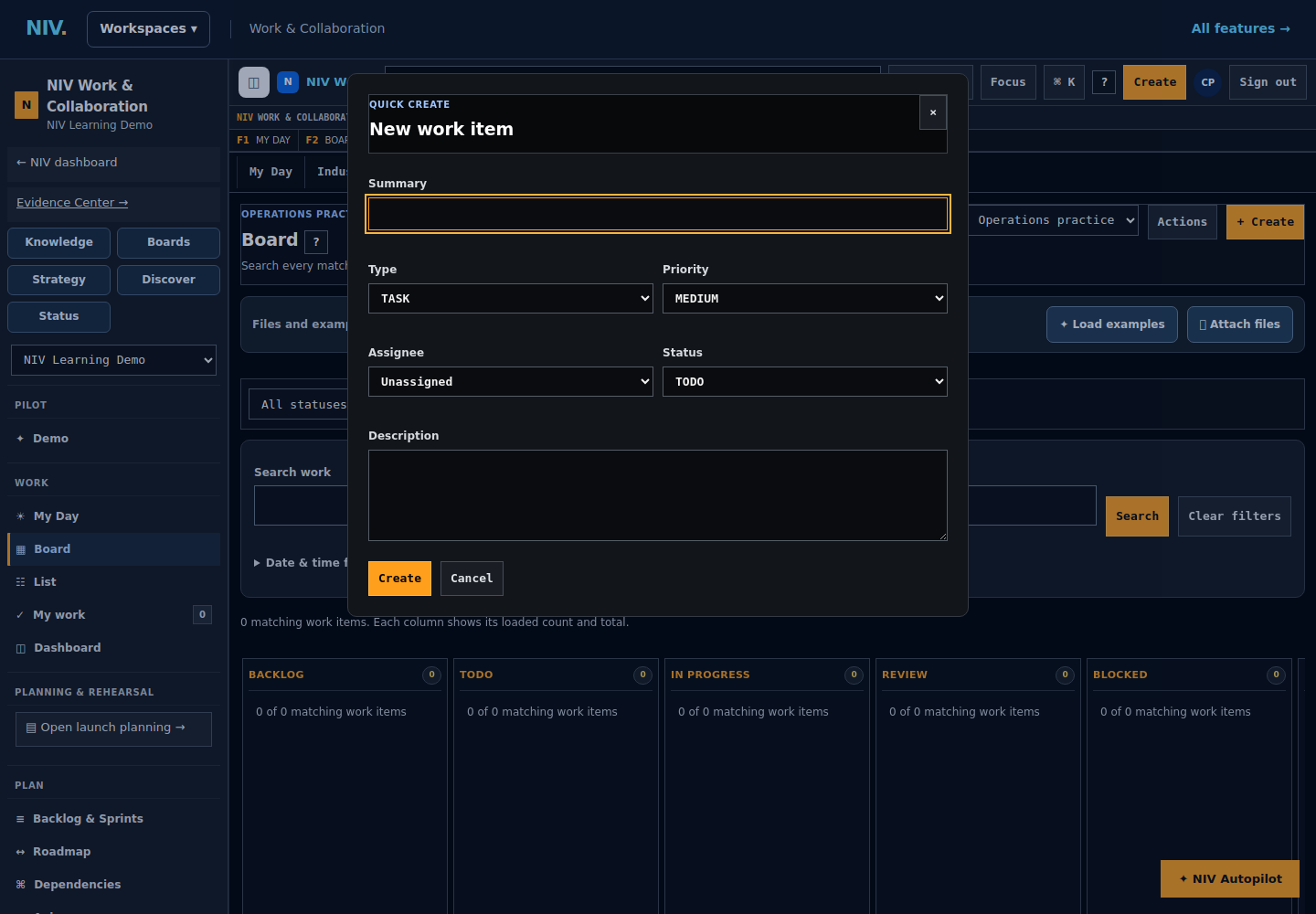
Actual NIV screen with fictional data. Select the image to view full size.
Describe the action and its outcome
In Summary, enter: Confirm delivery date for sample components. In Description, enter: Contact the supplier about order DEMO-104. Record the confirmed delivery date and any quantity shortfall in a comment. This task is ready for review when the confirmation is recorded.
The task identifies the action, the example order and the evidence needed to review the work.
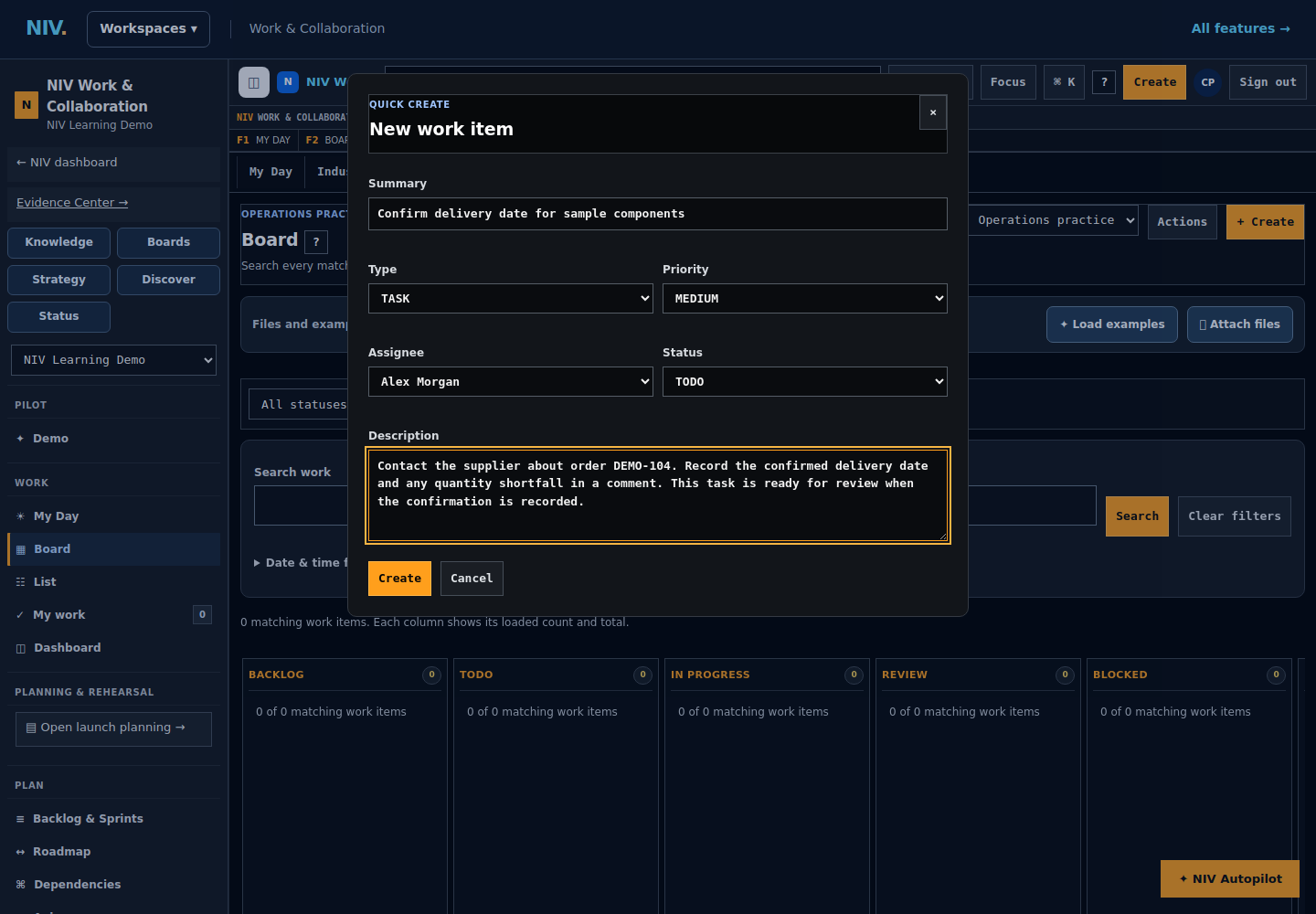
Actual NIV screen with fictional data. Select the image to view full size.
Tip: Use a verb and a specific object. 'Confirm delivery date for sample components' is clearer than 'Supplier issue'. Replace the example details with verified facts for real work.
Assign responsibility and set the starting status
Set Type to TASK, choose the responsible person in Assignee, and set Status to TODO. Select a Priority that reflects your team's agreed urgency; this example uses MEDIUM.
The named assignee, TASK type, TODO status and selected priority are visible before saving.
Actual NIV screen with fictional data. Select the image to view full size.
If something is wrong: If the intended person is not listed, have an administrator check their membership. Do not select a different person just to complete the form.
Create the task and confirm it saved
Select Create once. Wait for the task details to open. Read the task key at the top and compare the saved summary and assignee with your entries.
The details panel shows the newly created task and its unique key.
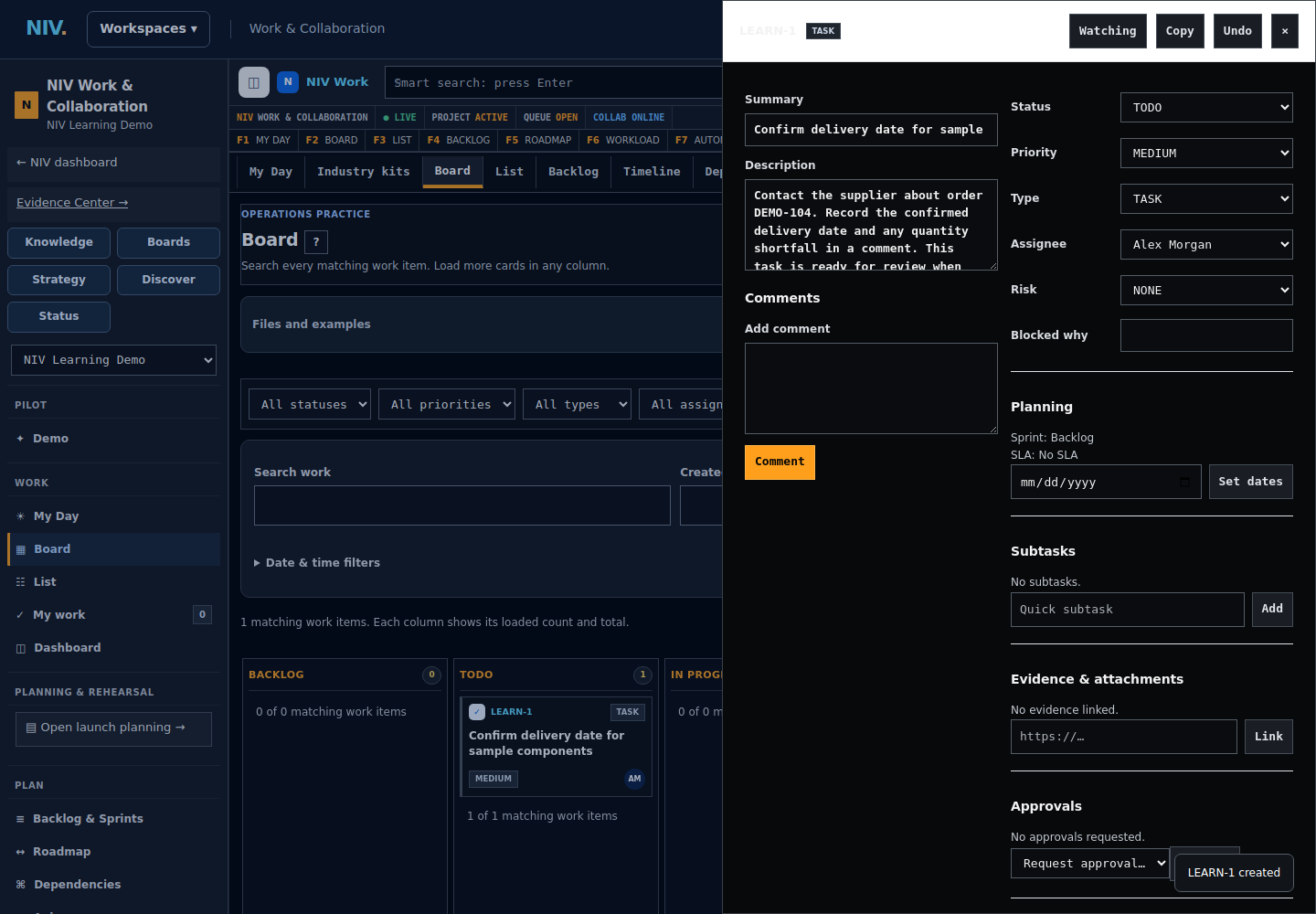
Actual NIV screen with fictional data. Select the image to view full size.
If something is wrong: If saving reports a connection error, keep the form open and retry unchanged as the message directs. Check for the original task before starting a separate request.
Add a useful handoff comment
In Add comment, enter: DEMO: delivery confirmation requested; awaiting the supplier's response. Select Comment. For real work, record only what has actually happened and include the source of a confirmed date.
The comment appears with its author and timestamp.
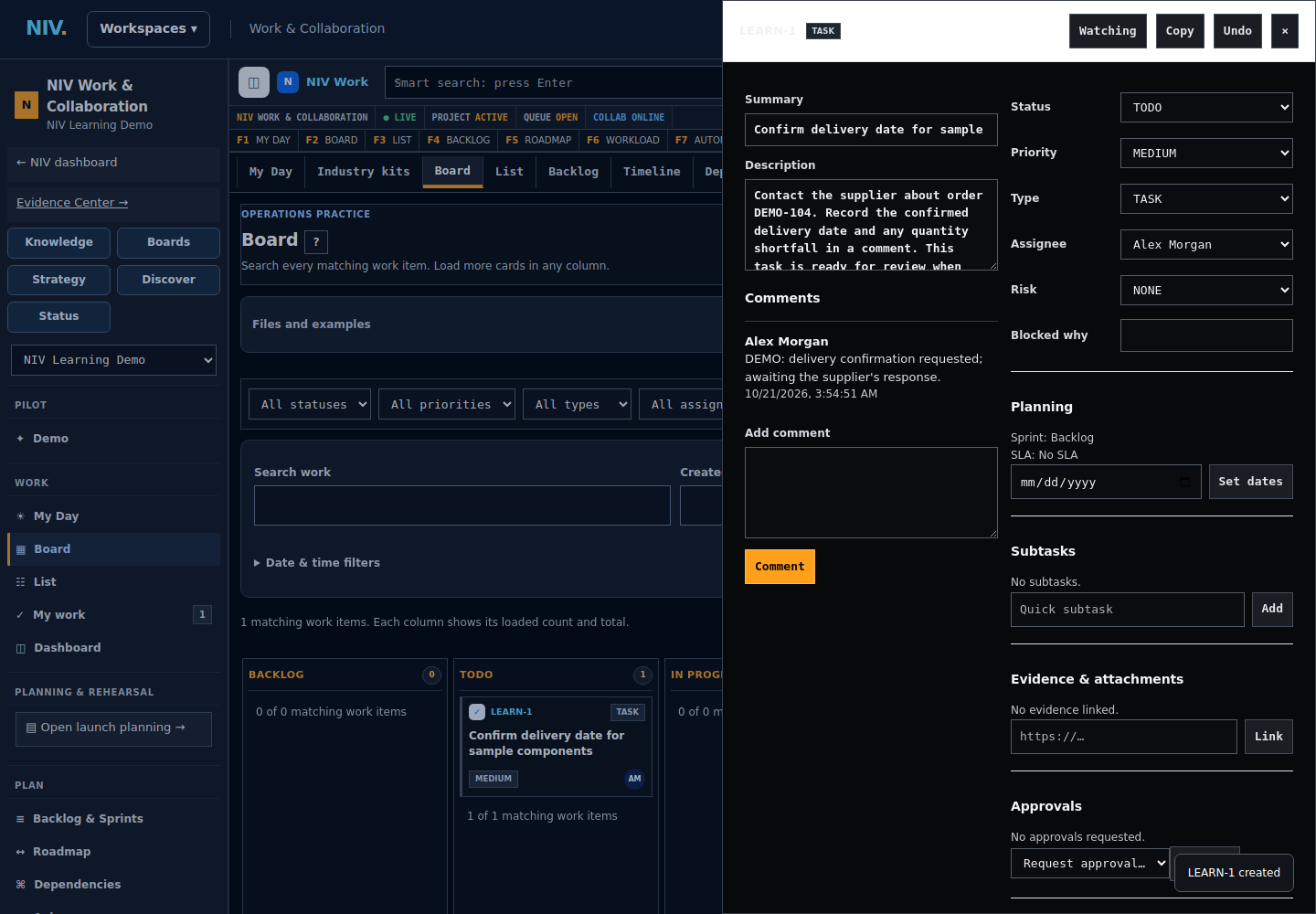
Actual NIV screen with fictional data. Select the image to view full size.
Tip: A saved task does not prove that an email or an external notification was sent. Follow your team's communication process.
Verify the saved record
Reload the page, reopen the task if needed, and confirm the summary, assignee, status and comment are still present. Share the task key with the person responsible. Leave the task in TODO until work begins.
The task persists and is ready for its owner to start. Creating it has not marked the underlying work complete.
Actual NIV screen with fictional data. Select the image to view full size.
If something is wrong: If a value is missing or incorrect, correct it before handing off the task. Follow required review and approval rules before moving real work to DONE.
Completion check
One task exists with the intended summary, description, assignee, priority and status. Its task key is visible and the record remains correct after reloading.
These published examples explain NIV using fictional records. A copy in your company starts as a draft and follows your normal review and publication process.