Create an SOP from screenshots and captured actions
Record a browser workflow, keep the screenshots and turn the actions into instructions your team can follow.
- Purpose
- Create a screenshot-based draft, then review its wording and evidence before approval.
- Who uses this
- SOP authors using desktop Chrome.
- Before you start
- Use desktop Chrome for the NIV Capture extension. Open SOP Studio, create a draft SOP, and choose a workflow with demonstration data for your first recording.
Install NIV Capture
In SOP Studio, select Capture process, then Download NIV Capture. Unzip the file. In Chrome, open chrome://extensions, enable Developer mode, select Load unpacked and choose the unzipped folder.
NIV Capture is listed in Chrome's extensions. Pin it to the toolbar for easy access.
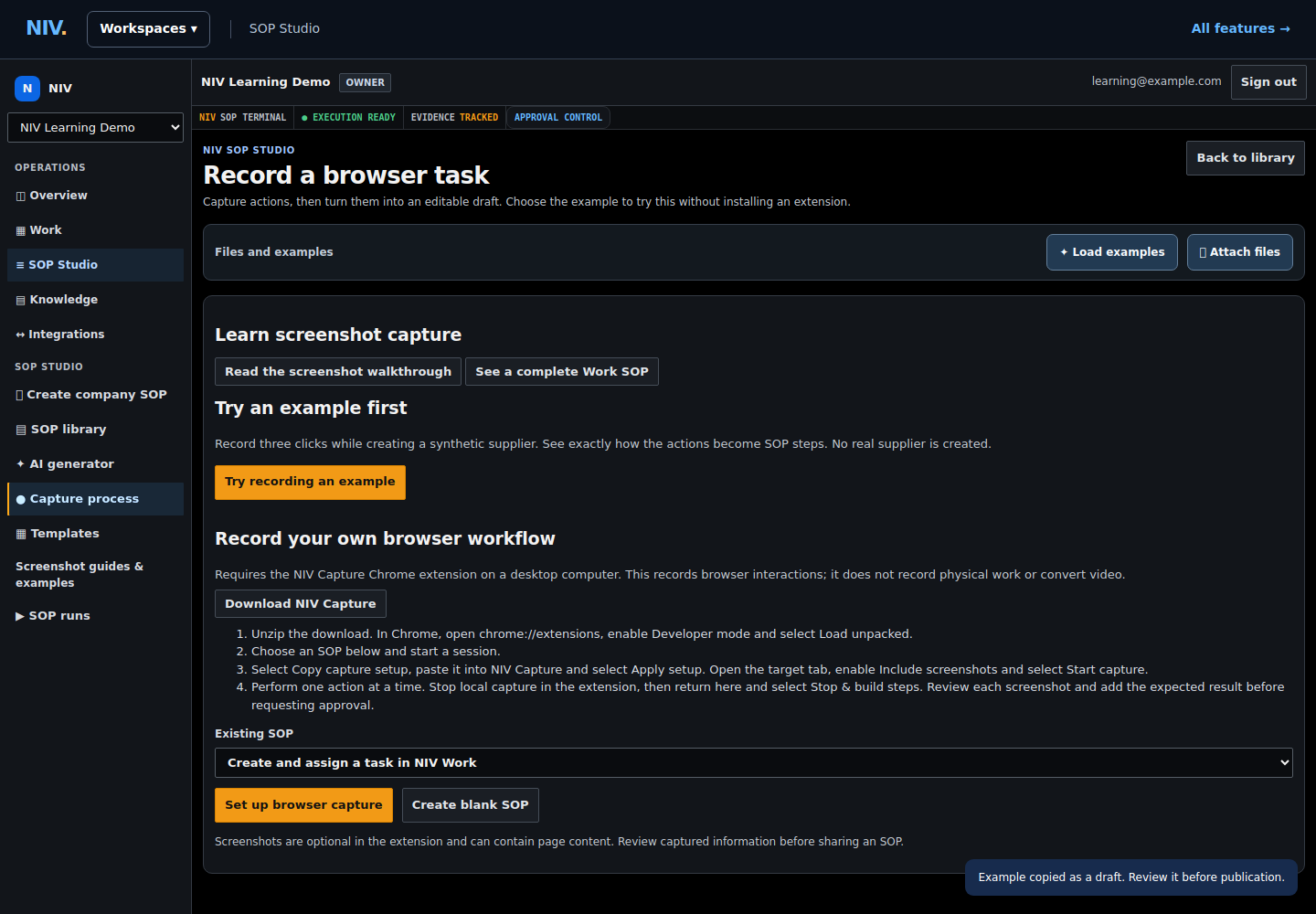
Actual NIV screen with fictional data. Select the image to view full size.
Tip: The extension records a selected browser tab. It does not record physical work or desktop applications. Safari does not run this Chrome extension.
Connect the draft SOP
Choose your draft in Existing SOP and select Set up browser capture. Select Copy capture setup. Open NIV Capture, paste into Paste capture setup and select Apply setup.
API base, Session ID and Capture token are filled in. Check that the base is your NIV address.
If something is wrong: Keep the setup token private. If the session expires, create a new session in NIV and replace the setup.
Enable screenshots and begin
Open the browser tab you want to document. In NIV Capture, select Include screenshots and then Start capture. Perform one deliberate action at a time, allowing the page to settle between actions.
The extension shows that it is recording. Actions and available screenshots are sent to the selected draft.
Tip: Screenshots can contain visible page information even though typed values are excluded from action labels. Use demonstration data and review every image.
Stop and build the draft
In the extension, select Stop local capture. Return to the open capture session in NIV and select Stop & build steps.
NIV opens the draft with ordered, editable steps and screenshots where capture succeeded.
If something is wrong: If an action or screenshot failed, inspect the warning and record that step again. Do not describe an image as captured when it is missing.
Write the instructions around the evidence
For each step, select Edit. Use a short action title and explain the exact control, the information to enter and the result to verify. Example: Select Create. Confirm that the task details open and a task key appears at the top. Add business checks only when the process owner has supplied them.
Each step tells a teammate what to do and how to recognize success.
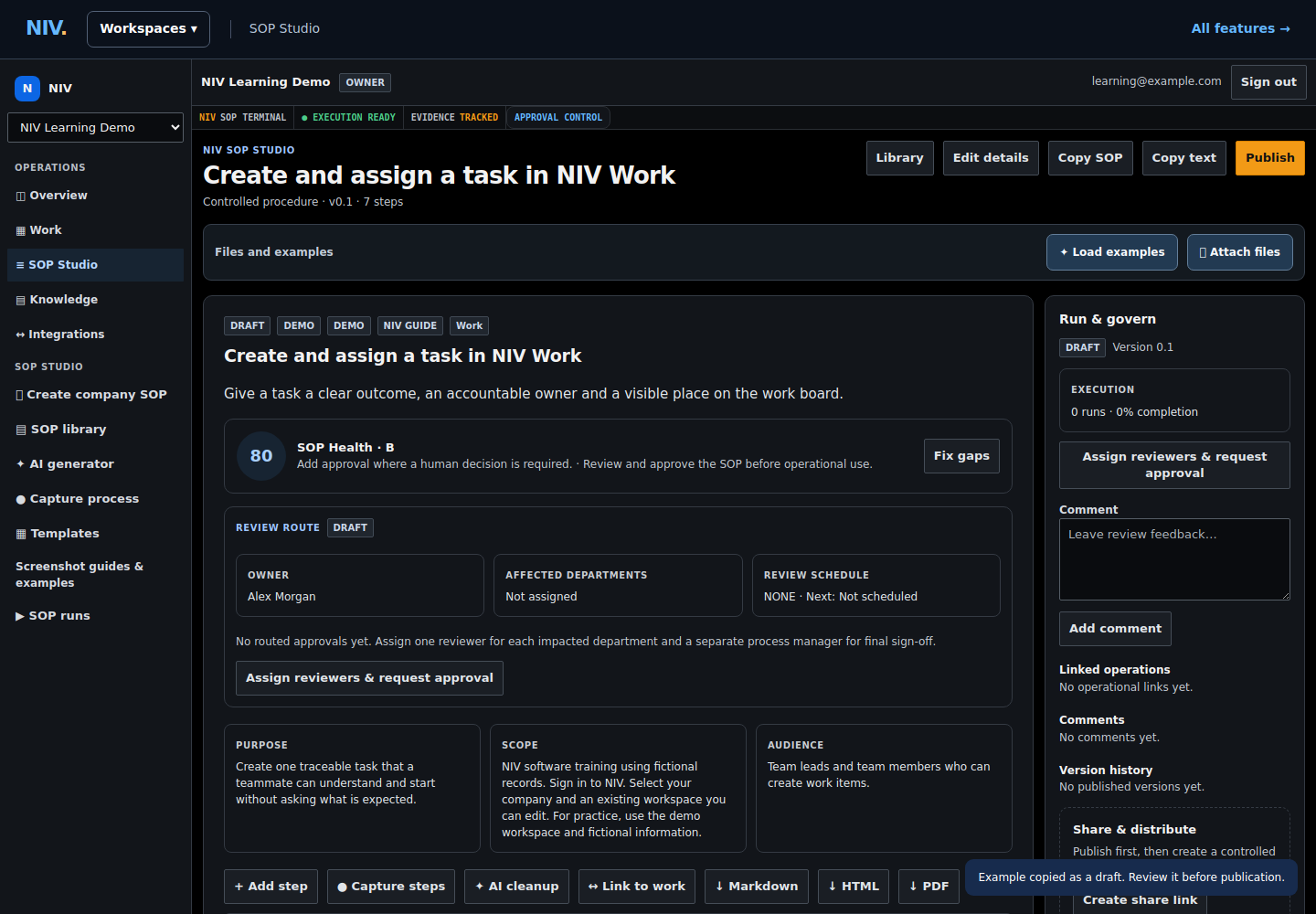
Actual NIV screen with fictional data. Select the image to view full size.
Tip: Captured clicks provide the starting text. They cannot establish your company's approval policy, tolerances or business decisions.
Review screenshots and exceptions
Open each screenshot at full size. Remove an image that exposes information you should not share. Check the order of the steps, add any missing action, and state when to stop or ask for help.
The draft is readable, complete for its stated purpose and suitable for its intended audience.
Request approval, then publish
Select Assign reviewers & request approval. Have the required reviewers and process manager review the procedure. After approval, select Publish. Use Create share link or the available exports to distribute the published version.
The published version is available through the permitted sharing options. Publication does not happen merely because capture stopped.
If something is wrong: Resolve review feedback before publishing. Do not bypass the company's reviewer requirements.
Completion check
The draft contains the captured actions and available screenshots in the intended order. An author has checked the text, images and expected results before requesting approval.
These published examples explain NIV using fictional records. A copy in your company starts as a draft and follows your normal review and publication process.