Build a product BOM and prepare a revision
Create a product, add a nested bill of materials and prepare a controlled change for review.
- Purpose
- Record the components for one product and distinguish the working BOM from a proposed or released revision.
- Who uses this
- Product and engineering users with permission to create and edit PLM records.
- Before you start
- Sign in to the intended company. Obtain the product and component numbers, quantities, units and revisions. Use fictional data when following this example.
Create the product
Open PLM and select Create product. Enter Sample actuator assembly as Product name, DEMO-ACT-100 as Part number, and a description of its purpose. Select Create product and build BOM.
The product workspace opens at revision A. Saving the product has not approved it for production.
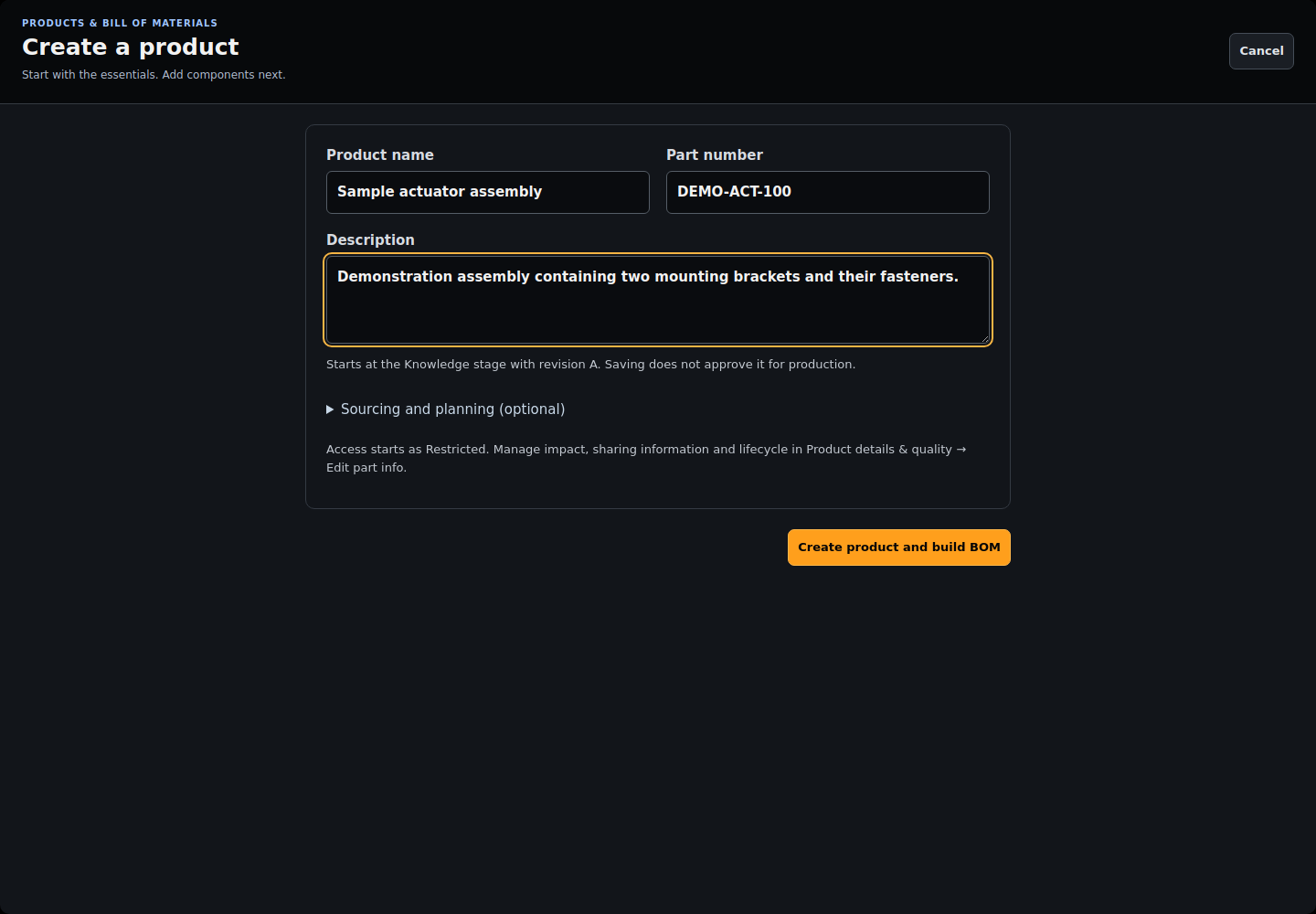
Actual NIV screen with fictional data. Select the image to view full size.
Add a parent component
Select Add first component. Enter DEMO-BRACKET and Mounting bracket. Set Quantity per parent to 2, Unit to EA and Parent assembly to Top level. Leave Make or buy as MAKE, then select Save component.
The BOM lists two mounting brackets for one product.
If something is wrong: If you cannot save, check your editing permission and the field error. Retry the same form after a connection failure; do not create another record blindly.
Add a child component
Select Add component. Enter DEMO-SCREW and Mounting screw. Set Quantity per parent to 4, Unit to EA, Parent assembly to DEMO-BRACKET, and Make or buy to BUY. Select Save component.
The screw is nested under the bracket. Its quantity per product is 8 EA: two brackets multiplied by four screws.
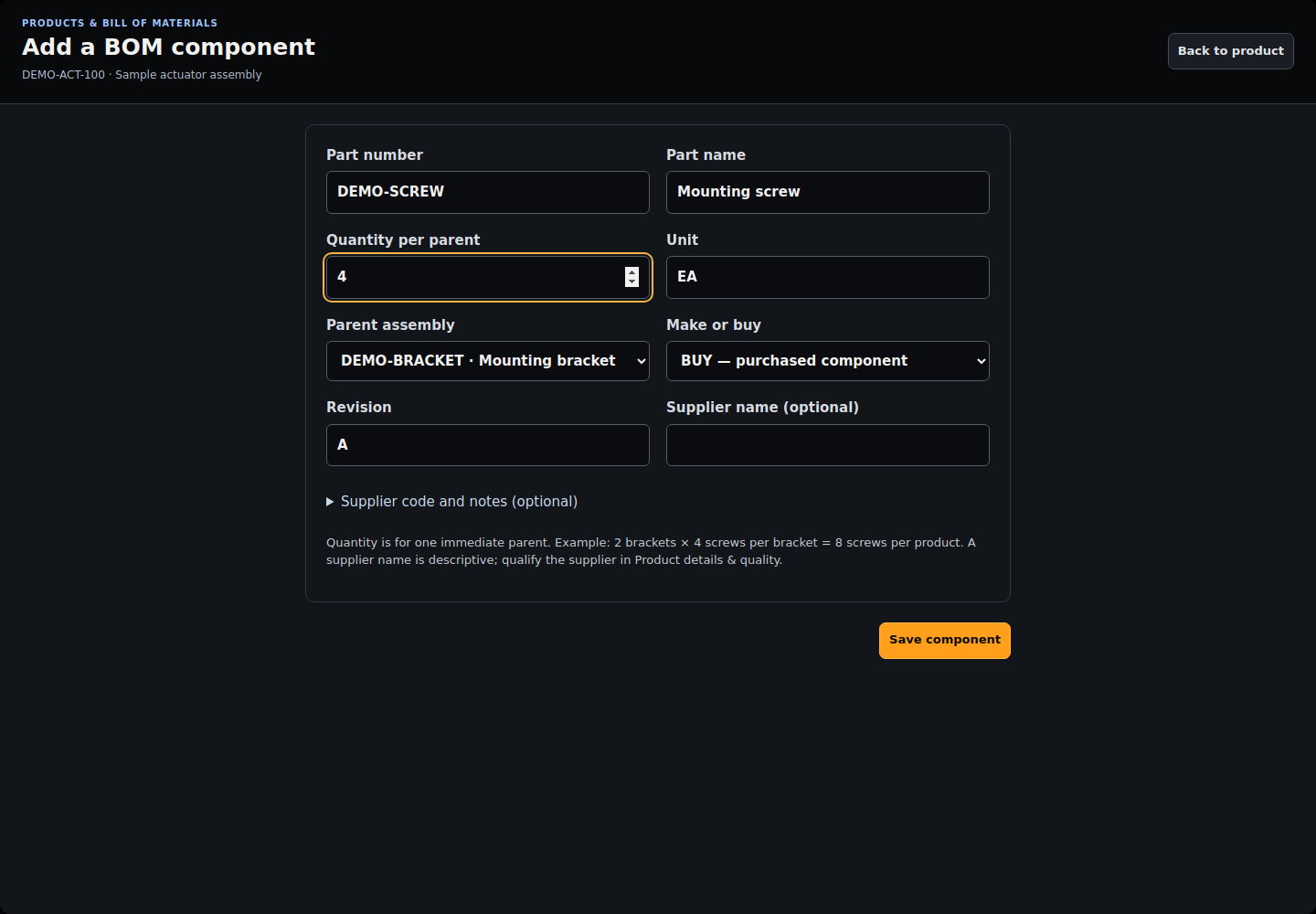
Actual NIV screen with fictional data. Select the image to view full size.
Check the complete structure
Read the BOM table. Verify each component, its parent, quantity, unit, revision and source. Use Find a component to search by part number, name or supplier, then clear the search to see the full structure. Reload and reopen the product to confirm it saved.
Both BOM lines remain present, and the quantity per product for DEMO-SCREW is 8 EA.
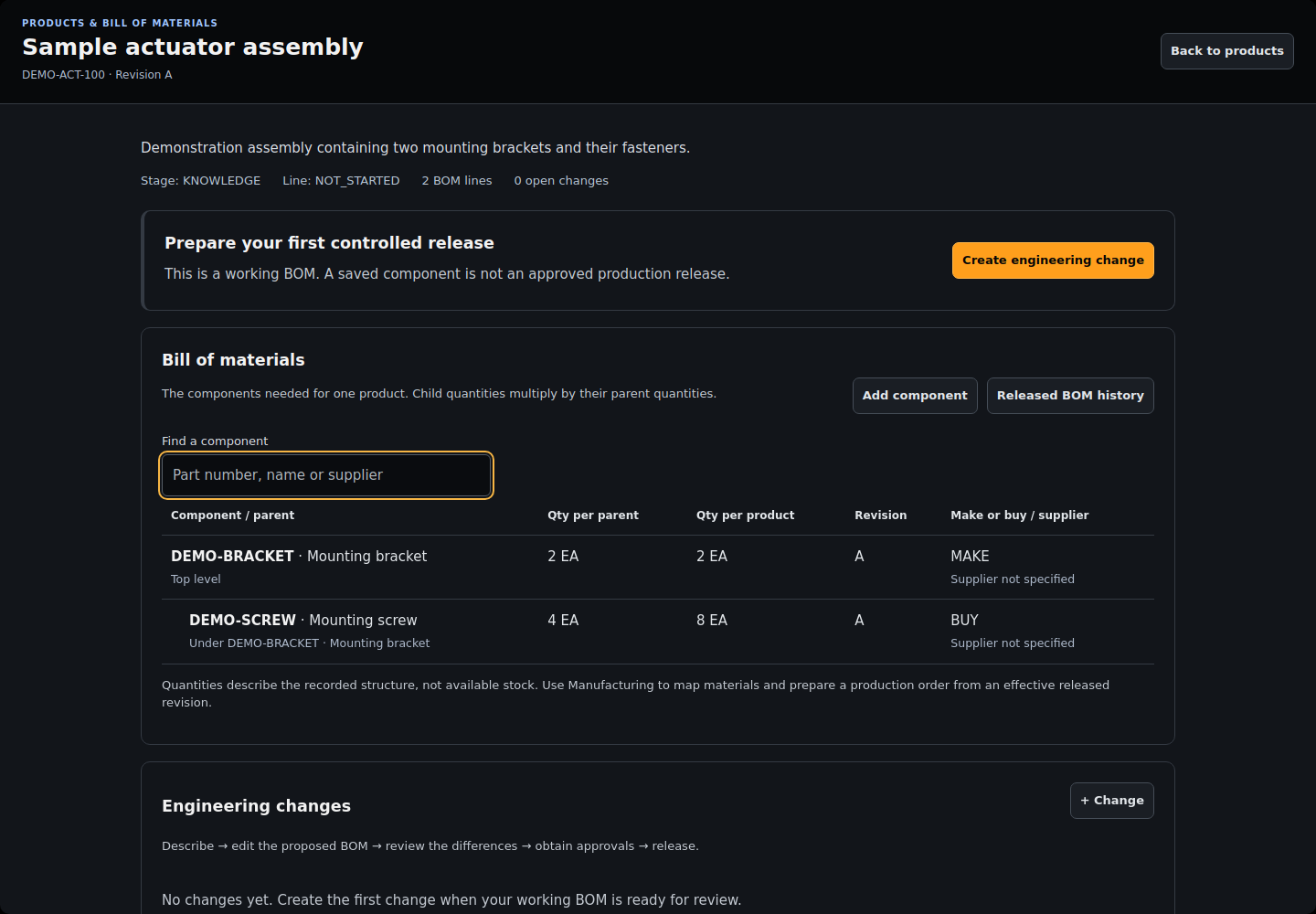
Actual NIV screen with fictional data. Select the image to view full size.
Tip: The table describes required quantities. It does not claim that stock is available or that a supplier is qualified.
Describe the proposed revision
Select + Change. Enter Increase bracket quantity, choose revision B, and explain the reason and known impact. Select Create draft and review BOM.
A controlled proposal opens for revision A to B. The working BOM has not changed.
Edit and save the proposal
In Proposed components, change the bracket quantity to 3. Review Changes to review and confirm that Quantity changes from 2 to 3. Select Save proposal and reset reviews, then confirm. Leave the effective date blank unless an approved release schedule requires one.
The proposal is saved. The original working BOM still contains two brackets until a valid release applies the change.
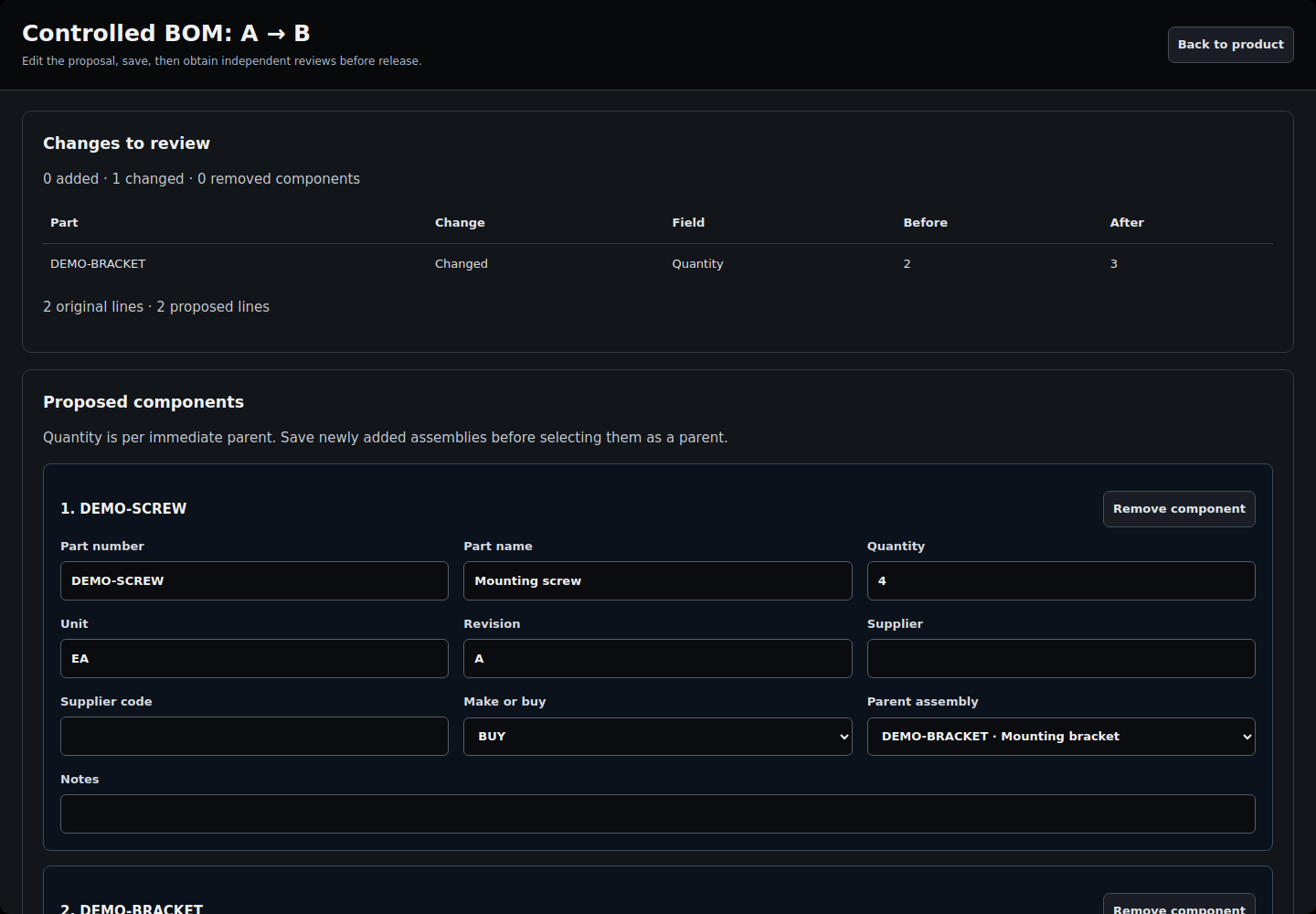
Actual NIV screen with fictional data. Select the image to view full size.
If something is wrong: If another person has saved a newer proposal, stop and reopen that version. Reconcile your changes before submitting again; do not overwrite their work.
Review before production
Select Back to product, then Product details & quality. Review the drawings, requirements, supplier records and the change. Obtain the required independent approvals and manager signature before selecting Release. Use Released BOM history and Find revision by production time to check the applicable approved structure before preparing manufacturing work.
The release succeeds only when the server's approval and release checks pass. Manufacturing setup and execution remain separate controlled steps.
Tip: This example ends with a saved proposal for review. Do not treat its fictional quantities as engineering specifications or approval evidence.
Completion check
The working BOM persists, the nested quantities are correct, and the change proposal is saved for review. Production remains subject to the required approvals and release checks.
These published examples explain NIV using fictional records. A copy in your company starts as a draft and follows your normal review and publication process.